How-to
iPhone iOS Update Problems? Fix Common Issues in 2026
Facing trouble after a new update? Many users experience iPhone iOS update problems that affect performance, battery life, or app functionality. Whether it’s a slow download, installation errors, or unexpected system glitches, these issues can be frustrating. Understanding common iOS update bugs, checking device compatibility, and ensuring sufficient storage space can help prevent errors. Other effective fixes include restarting your iPhone, using iTunes or Finder for manual updates, and managing network connections. This 2026 guide provides simple, practical solutions to resolve iPhone update issues, ensuring your device runs smoothly and you enjoy all the latest iOS features without interruption.
Why iOS Update Is Causing Serious Issues Sometimes Cause Problems
Software updates are complex. Even after extensive testing, bugs can slip through once millions of users install the update on different iPhone models.
Several factors contribute to update-related issues:
- Compatibility problems with older iPhone models
- Apps not optimized for the new iOS version
- Insufficient storage space during installation
- Background processes running during the update
Because of these reasons, some users experience problems immediately after updating.
Common Issues Reported After the Latest iOS Update
Many iPhone users have shared similar complaints across forums and social platforms. The most common issues include:
1. Battery Draining Faster Than Usual
Battery drain is one of the most frequently reported problems. After updating, background indexing and system optimization can consume extra power, especially during the first few days.
2. iPhone Running Slow or Lagging
Performance slowdowns are another concern. Apps may take longer to open, animations can feel choppy, and overall responsiveness may decrease temporarily.
3. Apps Crashing or Not Opening
Some apps may crash or fail to launch after the update. This usually happens when app developers have not yet released compatibility updates.
4. Overheating Issues
In certain cases, iPhones become warmer than normal during everyday use. This can happen due to increased background activity after updating.
5. Storage Showing as Full
System data may increase after an update, making storage appear full even when enough space was previously available.
Should You Avoid Updating Your iPhone Right Now?
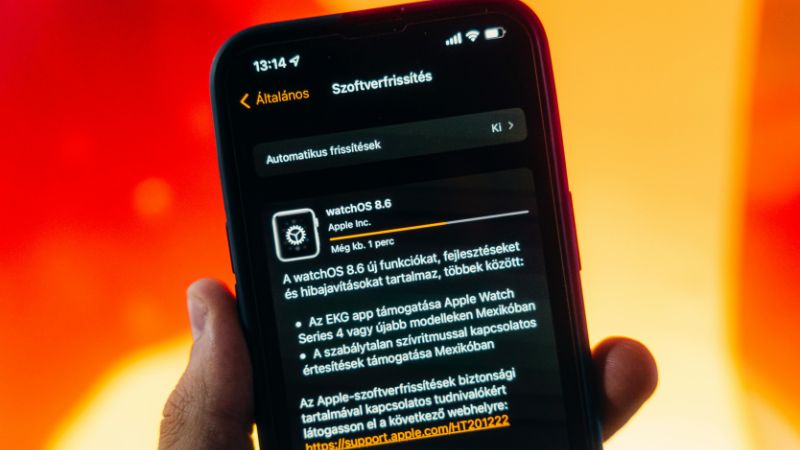
Avoiding an update completely is not always the best solution. However, waiting before installing a new iOS version can be a smart move.

Here’s when you should delay updating:
- Your iPhone is working perfectly
- You use critical apps for work or business
- You own an older iPhone model
- Early users are reporting widespread issues
Waiting a few weeks allows Apple to release bug-fix updates that resolve early problems.
What to Do Before Updating Your iPhone
Preparing your device properly can reduce the risk of issues.
Back Up Your iPhone
Always create a backup using iCloud or a computer. This ensures your data stays safe if something goes wrong.
Free Up Storage Space
iOS updates require extra space. Clearing unnecessary apps, photos, and videos can help prevent installation problems.
You can also read: How to Free Up Storage on iPhone
Update All Apps First
Make sure your apps are updated to the latest versions before installing iOS. This improves compatibility.
Check Battery Level and Internet Connection
A stable Wi-Fi connection and at least 50% battery (or charging) are essential during updates.
What to Do If You Already Updated and Face Problems
If your iPhone is already updated and experiencing issues, don’t panic. Most problems can be fixed with simple steps.
Restart Your iPhone
A restart clears temporary glitches and refreshes system processes.
Update Apps After iOS Update Is Causing Serious Issues
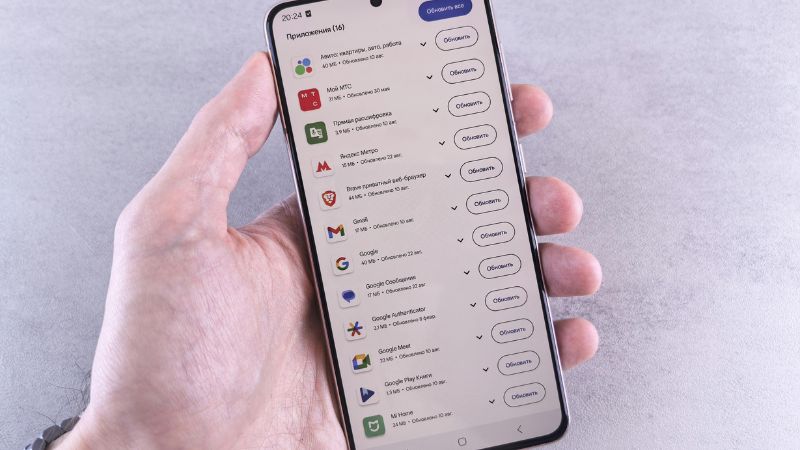
App updates often follow iOS releases. Updating apps can fix crashes and performance issues.
Reset Settings (Without Data Loss)
Resetting settings can fix network, display, and performance problems without deleting data.
Related guide: How to Reset iPhone Without Losing Data
Wait for the Next iOS Patch
Apple usually releases minor updates to fix bugs shortly after major releases. Installing these patches often resolves issues.
How Apple Responds to Update Issues
Apple actively monitors user feedback after each update. When widespread issues are confirmed, software patches are released quickly.
Security fixes are also included in updates, which is why completely skipping updates for long periods is not recommended.
Is It Safe to Downgrade iOS?
Downgrading iOS is possible but not recommended for beginners. It can lead to data loss and security risks if done incorrectly.
For most users, waiting for an official fix is safer than attempting a downgrade.
How to Stay Safe with Future iOS Updates
To avoid problems in the future, follow these best practices:
- Wait 1–2 weeks after a major iOS release
- Read user feedback before updating
- Keep regular backups
- Avoid updating on launch day
- Follow trusted tech guides
Final Thoughts
Dealing with iPhone iOS update problems can be frustrating, but most issues have simple fixes. By checking device compatibility, freeing up storage space, ensuring a stable network connection, and understanding common iOS update errors, you can prevent many problems. Restarting your iPhone, updating via iTunes or Finder, and monitoring app performance are effective ways to resolve glitches. Following these steps ensures your device runs smoothly and fully leverages the latest iOS features. Staying proactive about iPhone update troubleshooting keeps your phone fast, secure, and efficient, giving you a seamless experience with every 2026 software update.
FAQ
Q1: My iPhone update failed. What should I do?
A1: Restart your device, check storage, and ensure you’re on a stable Wi-Fi connection. Try updating again.
Q2: Why is my battery draining after an iOS update?
A2: New updates may run background processes. Allow a day for optimization or reset settings if needed.
Q3: Apps are crashing after iOS update. How to fix?
A3: Update your apps to the latest version via the App Store, or reinstall problematic apps.
Q4: Can I downgrade my iOS if the update causes problems?
A4: Apple only signs certain iOS versions. Downgrading is usually limited and not always recommended.