How-to
How to Reset iPhone Without Losing Data (Step-by-Step Guide)

Resetting an iPhone can fix many common problems like lag, app crashes, Wi-Fi issues, or incorrect settings. However, many users hesitate because they fear losing important data such as photos, contacts, messages, or apps. The good news is that you can reset your iPhone without losing data if you follow the correct method.
In this guide, you’ll learn how to reset an iPhone safely without data loss, what type of reset to choose, and common mistakes to avoid. This step-by-step tutorial works for most iPhone models and recent iOS versions.
What Does “Reset” Mean on an iPhone?
Before resetting your iPhone, it’s important to understand what “reset” actually means.
Apple offers different types of resets, and not all of them erase your data.
Types of iPhone Reset Options
- Restart – Turns the iPhone off and on (no data loss)
- Reset All Settings – Removes system settings only
- Erase All Content and Settings – Deletes everything
- Factory Reset with Backup Restore – Data can be recovered
If your goal is to fix issues without losing data, you should NOT choose “Erase All Content and Settings” unless you have a full backup.
Can You Reset iPhone Without Losing Data?
Yes, it is completely possible to reset an iPhone without losing data.
You can do this by:
- Resetting settings only
- Restarting or force restarting
- Using a backup before a factory reset
- Avoiding erase options unless necessary
Choosing the right reset method depends on the problem you are facing.
Things to Do Before Resetting iPhone (Important)
Even though some reset options don’t delete data, it’s always smart to prepare.

Checklist Before Reset
- Ensure your iPhone battery is above 50%
- Connect to Wi-Fi
- Know your Apple ID password
- Turn on iCloud Backup (recommended)
How to Check iCloud Backup
- Go to Settings
- Tap your Apple ID
- Tap iCloud
- Select iCloud Backup
- Make sure it’s turned ON
This extra step protects you in case anything goes wrong.
Method 1: Restart iPhone (No Data Loss)
If your iPhone is slow or apps are freezing, a simple restart can solve the problem.
How to Restart iPhone
- Press and hold Power + Volume button
- Slide to power off
- Wait 30 seconds
- Turn the iPhone back on
This method does not delete any data.
Method 2: Force Restart iPhone (Safe Method)
A force restart is useful if your iPhone is frozen or not responding.
Steps to Force Restart
- Quickly press Volume Up
- Quickly press Volume Down
- Press and hold Power button until Apple logo appears
This reset clears temporary glitches without touching your data.
Method 3: Reset iPhone Settings Without Losing Data (Recommended)
This is the best and safest method if your iPhone has Wi-Fi, Bluetooth, network, or system issues.
What This Reset Does
Removes Wi-Fi passwords
Resets system settings
Keeps apps, photos, and files
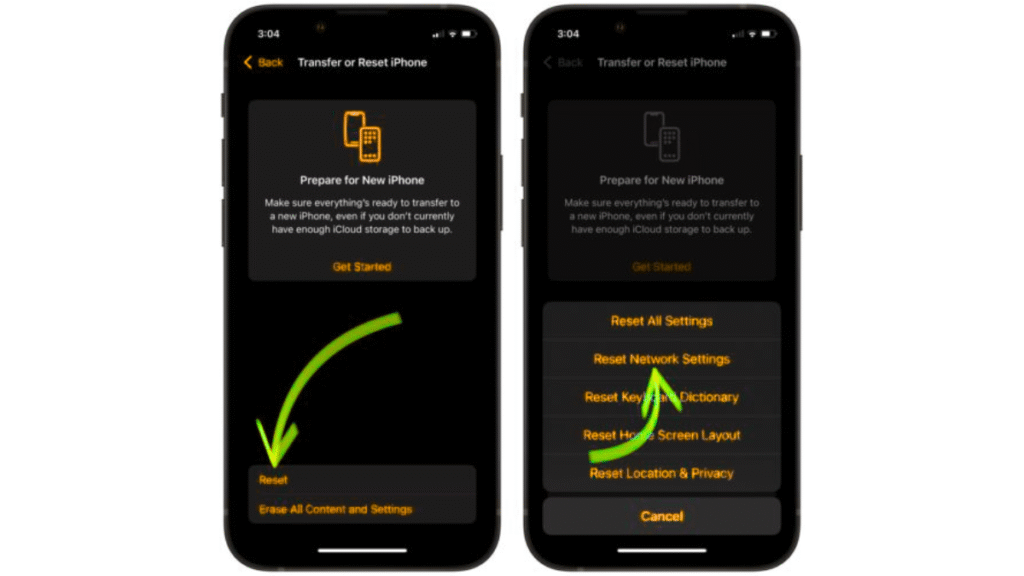
How to Reset All Settings
- Open Settings
- Tap General
- Select Transfer or Reset iPhone
- Tap Reset
- Choose Reset All Settings
- Enter passcode if asked
Your iPhone will restart, but your data will remain intact.
Method 4: Factory Reset iPhone Without Losing Data (Using Backup)
If your iPhone has serious issues, a factory reset may be required. You can still recover your data by restoring from a backup.
Step 1: Create a Backup
- Go to Settings → Apple ID → iCloud → iCloud Backup
- Tap Back Up Now
Or use iTunes/Finder on a computer.
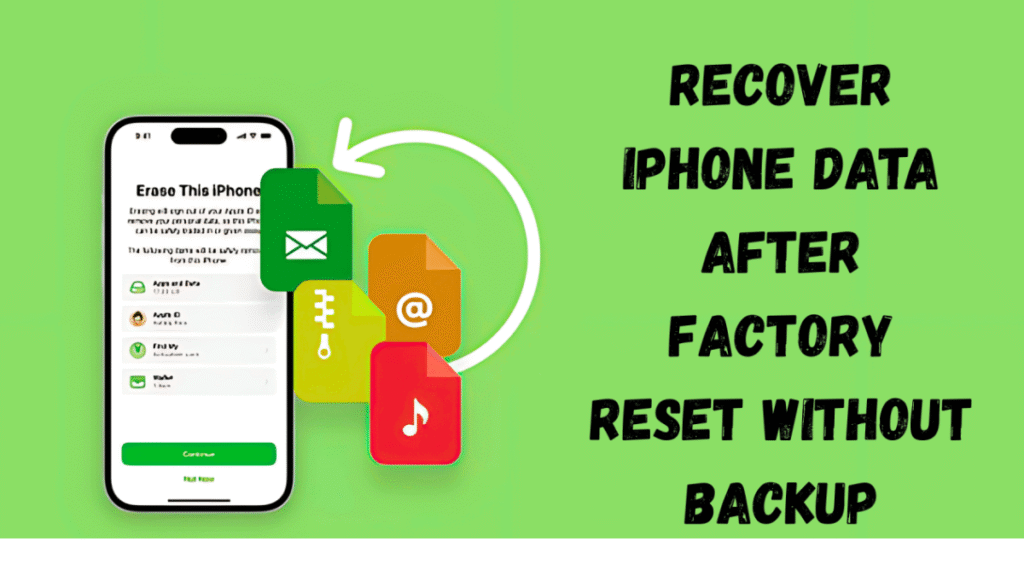
Step 2: Erase iPhone
- Open Settings
- Tap General
- Select Transfer or Reset iPhone
- Tap Erase All Content and Settings
Step 3: Restore Data
- During setup, choose Restore from iCloud Backup
- Sign in with Apple ID
- Select your latest backup
Your data will return after the reset.
When Should You Use a Full Reset?
You should only do a factory reset if:
- iPhone keeps crashing
- Software update failed
- You are selling the device
- Major system errors exist
For minor issues, Reset All Settings is usually enough.
Common Mistakes to Avoid When Resetting iPhone
Many users lose data because of simple mistakes.
Avoid These Errors
- Skipping backup
- Choosing “Erase All Content” accidentally
- Forgetting Apple ID password
- Interrupting reset process
- Resetting with low battery
Taking a few extra minutes can save hours of recovery stress.
Does Resetting iPhone Delete Photos and Apps?
It depends on the reset type:
- Restart or Reset Settings → No
- Factory Reset → Yes (unless restored from backup)
Always double-check the option before confirming.
How Long Does iPhone Reset Take?
- Restart: 1–2 minutes
- Reset All Settings: 3–5 minutes
- Factory Reset + Restore: 30 minutes to 1 hour
Time depends on data size and internet speed.
Best Practices for Safe iPhone Reset
- Use Reset All Settings first
- Keep iCloud Backup enabled
- Update iOS before resetting
- Reset only when necessary
These habits help avoid data loss in the future.
FAQs
Can I reset my iPhone without Apple ID?
No. Apple ID is required for security reasons, especially for factory reset.
Will resetting iPhone remove viruses?
Yes, resetting settings or factory reset can remove malicious apps or glitches.
Is Reset All Settings safe?
Yes, it’s one of the safest ways to fix issues without losing data.
Does reset improve iPhone performance?
In many cases, yes especially if the issue is software-related.
Final Thoughts
Resetting an iPhone doesn’t always mean losing your data. By choosing the right reset option, you can fix most problems safely and quickly. For common issues, Reset All Settings is the best choice. For serious problems, a factory reset with a backup ensures your data stays protected.
Follow this guide step by step, and you’ll be able to reset your iPhone without fear of data loss.