How-To Tutorials
Wi-Fi 7 News: The Future of Ultra-Fast, Low-Power IoT Connectivity
The latest Wi-Fi 7 News is transforming the way IoT devices connect in homes, offices, and industries across the USA. Infineon’s tri-radio IoT chip integrates Wi-Fi 7, Bluetooth LE 6.0, and IEEE 802.15.4 Thread, providing a compact, low-power solution for battery-powered devices. With support for 20 MHz-only Wi-Fi 7, adaptive band switching, and multi-protocol edge nodes, this innovation ensures reliable connectivity even in congested network environments. Smart home gadgets, industrial sensors, and commercial IoT systems can now achieve longer battery life, deterministic behavior, and enhanced contextual awareness. This breakthrough marks a significant step toward the next generation of low-power IoT connectivity.
Wi-Fi 7 IoT Devices: Low-Power Tri-Radio Connectivity
The ACW741x chip marks a major milestone in low-power IoT connectivity. Designed for devices that rely on batteries, it supports 20 MHz-only Wi-Fi 7 operation, which reduces interference in crowded network environments.
Key Features Include:
- Tri-radio integration: Wi-Fi 7, Bluetooth LE 6.0, IEEE 802.15.4 Thread
- Ultra-low standby power: Up to 15x lower than previous IoT Wi-Fi products
- Multi-Link Wi-Fi: Works on 2.4, 5, and 6 GHz bands
- Smart home and industrial readiness: Optimized for congested environments
This chip allows devices such as door locks, cameras, thermostats, and other battery-powered IoT devices to last longer while maintaining constant connectivity. For example, a smart lock powered by ACW741x could operate for years without changing its battery.
Transition Insight: Notably, adaptive band switching reduces network congestion. This is especially useful in busy households or commercial spaces with dozens of connected devices.
Why 20 MHz Wi-Fi 7 Matters
Wi-Fi 7 usually focuses on high-speed data. However, IoT devices require low-power and reliable links, not maximum throughput. Supporting 20 MHz-only operation makes devices more efficient.
Advantages of 20 MHz Wi-Fi 7:
- Reduced energy consumption for battery-powered devices
- Improved connectivity in crowded networks
- Better reliability for multi-protocol edge nodes
- Compatibility with Wi-Fi CERTIFIED 7 standards
This shift means Americans can expect smart home devices that last longer, work better, and require fewer frequent updates. Think of thermostats that report accurate data all day without draining batteries or cameras that stay connected in smart offices without network issues.
Multi-Protocol Integration for Smarter IoT Networks
The ACW741x goes beyond Wi-Fi. By integrating Bluetooth LE 6.0 with Channel Sounding and IEEE 802.15.4 Thread, the device supports Matter ecosystem connectivity. This means your smart home or industrial setup can communicate smoothly across multiple protocols.

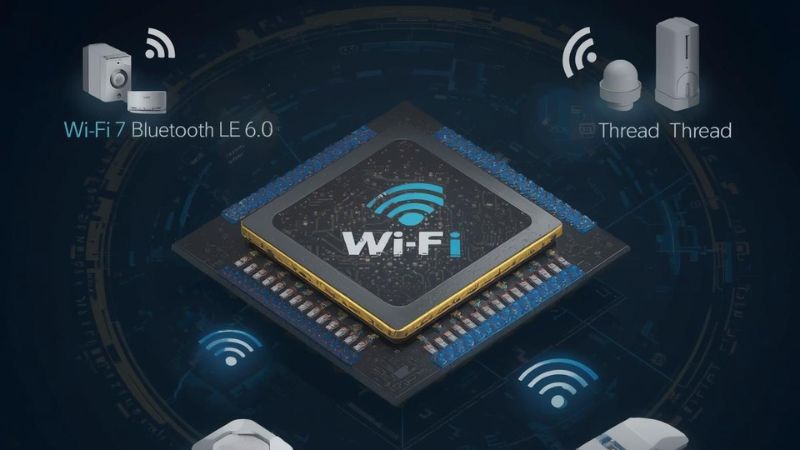
Benefits of Multi-Protocol Integration:
- Seamless connection between different smart devices
- Enables contextual awareness and location-based services
- Simplifies device setup and reduces hardware complexity
- Supports both consumer and industrial IoT nodes
For instance, a smart factory using these devices can track machinery locations in centimeters, thanks to Bluetooth Channel Sounding. Similarly, home automation systems can respond faster to environmental changes by leveraging Wi-Fi Channel State Information (CSI).
Example: Imagine your lights automatically adjusting based on the exact position of your family members, all without draining your battery. That’s the power of tri-radio IoT devices.
Wi-Fi 7 in Congested Environments: Adaptive and Efficient
Wi-Fi networks in the USA are getting crowded. With multiple devices per household, interference is a real problem. The ACW741x chip solves this by supporting adaptive band switching across 2.4, 5, and 6 GHz bands.
Table: Wi-Fi 7 Band Usage
| Frequency Band | Typical Use Case | Benefit |
|---|---|---|
| 2.4 GHz | Smart home devices | Long-range, low energy |
| 5 GHz | Wi-Fi devices & cameras | Faster data, moderate range |
| 6 GHz | High-speed Wi-Fi 7 links | Reduced congestion, high reliability |
This ensures devices work efficiently even in dense apartments, offices, or commercial buildings. Wi-Fi 7 IoT devices now offer deterministic behavior and scheduling efficiency, guaranteeing smooth performance in all scenarios.
Transition Insight: As Kevin Robinson, CEO of Wi-Fi Alliance, says, “The introduction of 20 MHz Wi-Fi 7 IoT solutions unlocks widespread adoption across the IoT market.”
Ecosystem Support and Module Integration
Infineon is collaborating with module partners like Azurewave, Ezurio, Murata, and Quectel. This makes it easier to integrate the ACW741x chip into ready-to-use wireless modules.
Benefits of Ecosystem Support:
- Faster deployment of smart home and industrial IoT devices
- Reduced development costs for startups and manufacturers
- Certified and standardized Wi-Fi 7 performance
- Future-proof devices ready for Matter ecosystem
This approach allows both large companies and small startups in the USA to adopt tri-radio IoT devices quickly, offering better network quality and robust performance.
Impact on Smart Homes and Industrial IoT
With Wi-Fi 7 IoT devices, both consumers and businesses will see tangible benefits.
Smart Home Advantages:
- Reliable always-on connectivity
- Longer battery life for devices
- Easy integration with existing ecosystems
Industrial IoT Advantages:
- Accurate location tracking with centimeter-level ranging
- Deterministic scheduling for real-time operations
- Low-power devices reduce energy costs
In short, this new Wi-Fi 7 news signals the next wave of innovation. From homes to factories, devices will now work smarter, not harder.
Conclusion:
The latest Wi-Fi 7 IoT devices are more than just fast connections. They combine tri-radio integration, low-power operation, and multi-protocol support to transform smart homes, industrial automation, and commercial IoT.
FAQ
1. Is Wi-Fi 7 officially released?
Yes, Wi-Fi 7 was officially launched under the Wi-Fi CERTIFIED 7 program by the Wi-Fi Alliance in early 2024.
Certified routers and devices are now available in the U.S. market.
2. Is Wi-Fi 7 a real thing?
Yes, it is real and based on the IEEE 802.11be standard.
Major tech brands already sell Wi-Fi 7 routers, laptops, and smartphones.
3. Is Wi-Fi 7 faster than 5G?
In ideal indoor conditions, Wi-Fi 7 can deliver higher peak speeds than most 5G home networks.
However, 5G offers wider outdoor coverage while Wi-Fi 7 focuses on local high-speed connectivity.
4. Is Wi-Fi 8 coming?
Yes, research for Wi-Fi 8 (IEEE 802.11bn) is already underway.
It aims to improve reliability, latency, and performance in dense environments.
5. Is there 6G internet?
6G is currently in the research and testing phase worldwide.
Commercial 6G networks are expected around 2030, not yet available today.