How-to
How to Remove a Virus from Android (Complete Guide 2026)
Your Android phone stores your photos, passwords, banking apps, and private messages. So when something feels wrong, panic is natural. Learning how to remove a virus from Android can save your data, money, and peace of mind. Most people say “virus,” yet the real threat is malware like spyware, adware, or ransomware. Still, the solution begins the same way. You need clear steps, smart tools, and calm action. In this guide, you will discover exactly how to remove a virus from Android safely. More importantly, you will learn how to protect your device so it stays secure long after the cleanup is done.
How to clean your phone from virus
First, pause and breathe. Panic causes mistakes. Smart action removes threats.
If you want to clean phone of malware, start with the basics. Clear unnecessary storage. Delete unknown apps. Check permissions. Many infections hide inside harmless-looking tools downloaded outside the Google Play Store.
Here is your first defense layer:
- Use clear cache Android from app settings
- Uninstall suspicious apps immediately
- Run a scan phone for malware using a trusted Android antivirus app
- Enable Google Play Protect
- Review mobile data usage for strange spikes
Sometimes the infection is simple Adware throwing Pop-up ads everywhere. Other times it is Battery draining malware secretly mining crypto. Think of malware like termites. You may not see them. Yet the damage grows quietly.

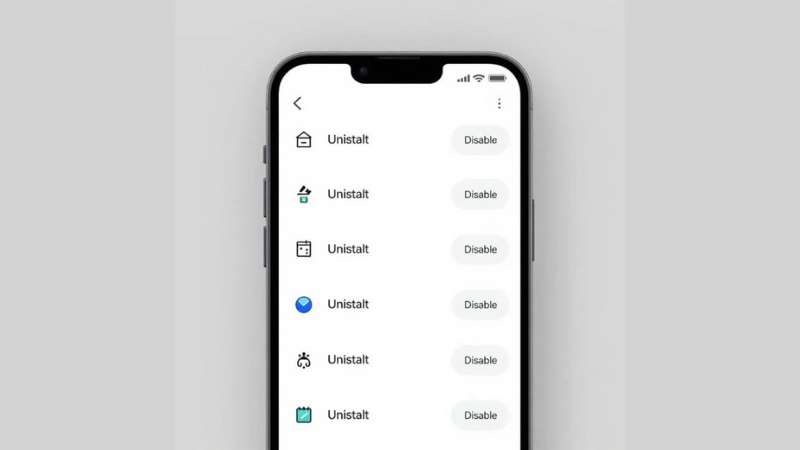
For example, a small flashlight app once requested microphone access. That is absurd. A flashlight needs light permission only. Such red flags scream trouble.
Here is a quick risk table:
| Symptom | Possible Cause | Immediate Action |
|---|---|---|
| Random ads | Adware | Remove unknown apps |
| Slow phone | Spyware or Rootkit | Run Malware scan |
| Locked screen | Ransomware | Disconnect internet |
| High data usage | Spyware | Check app permissions |
Small steps matter. They build real Android virus protection.
How to get rid of a virus on your Android phone: Step-by-Step
Now we go deeper. If your phone acts strange, follow this structured plan.
Start with isolation. Disconnect from WiFi. A Spoofed network or Public WiFi risk often spreads malware. Hackers love coffee shops.
Then restart in Safe Mode. This disables third-party apps. If the issue stops, a malicious app is the culprit. That narrows your hunt.
Next actions:
- Reboot in safe mode
- Remove malicious apps
- Change Google password
- Strengthen Google Account security
- Enable 2-Step Verification Android
- Activate Multi-Factor Authentication (MFA)
Why change passwords? Because many Trojan horse attacks steal credentials during a Phishing attack. A simple password reset can block a future Data breach.
For extra safety, install Malwarebytes or Malwarebytes Mobile Security from the official Google Play Store. A proper Malware scan detects hidden Keylogger or Rootkit threats invisible to you.
Here is a structured flow diagram:
Detect Issue
↓
Disconnect Internet
↓
Enter Safe Mode
↓
Delete suspicious apps
↓
Run antivirus for Android
↓
Update passwords
↓
Enable Android virus protection
Each step strengthens your mobile cybersecurity posture. Skip none.
Does resetting a phone remove a virus?
Factory reset sounds dramatic. Sometimes it is necessary.
Yes, factory reset Android can remove most malware. It wipes everything. Apps, files, hidden infections. However, it is a nuclear option.
Before resetting:
- Backup clean files only
- Avoid restoring infected apps
- Update the Android operating system after reset
Think of reset like demolishing a termite-infested house. You remove the structure. Yet if you reuse contaminated wood, termites return.
Important note. Advanced Rootkit infections rarely survive reset. Still, firmware-level attacks need professional repair.
According to Google Security Blog (https://security.googleblog.com), keeping system updates active reduces 95 percent of exploit-based attacks. Updates patch vulnerabilities quietly.
Reset wisely. Not blindly.
How to remove viruses from a phone that won’t turn on
A phone that refuses to boot feels terrifying. Yet do not assume the worst.
Often the issue is hardware. Sometimes severe Ransomware corrupts startup files. If recovery mode works, try factory reset from recovery.
If recovery fails, professional service is required. You cannot manually remove a Rootkit without specialized tools.
Here is your action ladder:
- Charge fully
- Attempt recovery mode reset
- Avoid random repair apps
- Contact manufacturer support
Do not download shady PC tools promising miracle Android malware removal. Many are scams.
When your device is dead, patience beats panic.
How do I know if my phone has a virus: How to check for viruses on Android
Your phone whispers before it screams. You must listen.
Warning signs include:
- Strange Pop-up ads
- Unknown Suspicious apps
- Rapid mobile data usage
- Fast battery drain
- Apps crashing
Here is a quick symptom checklist:
| Behavior | Risk Type |
|---|---|
| Contacts get spam texts | Trojan horse |
| Camera activates randomly | Spyware |
| Phone overheats idle | Keylogger or miner |
| Fake security alerts | Stalkerware |
Run a scan phone for malware using a reputable Android antivirus app. That gives clarity fast.
Malware vs Virus Difference Explained Simply
A virus spreads by attaching itself to files. Malware is broader. It includes Adware, Spyware, Ransomware, and more. So when you search how to remove a virus from Android, you actually mean removing malware. The solution focuses on secure Android phone practices and layered protection.
Understanding this difference improves decision-making.
Android virus protection
Protection beats repair. Always.
To strengthen Android virus protection, follow these rules:
- Use trusted antivirus for Android
- Keep system updated
- Enable Google Play Protect
- Avoid third-party app stores
- Use VPN for Android for encrypted browsing
- Follow Strong password tips
A VPN for Android adds Privacy protection especially on public WiFi. It encrypts traffic. Hackers see gibberish.
Good password structure:
- 12+ characters
- Mix of symbols and numbers
- No birthdates
Strong Password security blocks 80 percent of breaches instantly.
Security is not paranoia. It is discipline.
Cybersecurity info you can’t live without
Cybercrime evolves daily. Attackers innovate. You must adapt.
According to FBI IC3 reports (https://www.ic3.gov), Americans lose billions yearly to digital fraud. Many cases start with mobile compromise.
Essential knowledge:
- Never click random SMS links
- Verify app developer reputation
- Review permissions monthly
- Monitor banking alerts
Think of cybersecurity like locking your house. You would not leave doors open. So do not leave digital doors open.
Layered defense works best. Antivirus. MFA. VPN. Updates. Awareness. Combined, they create a fortress.
Privacy Preference Center
Privacy matters. Data is currency.
Control app permissions regularly. Visit settings and disable camera or microphone for apps that do not need them. That limits Spyware risks.
Also adjust Google ad personalization settings. Reduce tracking. Review Google Account security dashboard often.
Here is a simple privacy control table:
| Setting | Why It Matters |
|---|---|
| App Permissions | Prevent hidden spying |
| MFA Enabled | Stops stolen login abuse |
| Play Protect On | Blocks harmful apps |
| VPN Active | Shields browsing data |
Digital hygiene is like brushing teeth. Skip it and decay begins quietly.
Final Thoughts on How to Remove a Virus from Android
Learning how to remove a virus from Android empowers you. You are no longer helpless. You know how to remove virus from Android, perform Android malware removal, and build lasting Android device security.
Threats like Adware, Trojan horse, Spyware, and Ransomware will not disappear. However, with structured defense, awareness, and proactive tools, your phone stays secure.
Your Android holds your life. Protect it like it matters. Because it does.
FAQ
How do I manually remove a virus?
Go to Settings > Apps, find unfamiliar or suspicious apps, and uninstall them immediately.
Clear cache, review app permissions, and update your Android system to close security gaps.
How do I get rid of fake virus warning on Android phone?
Close the browser tab showing the alert and clear your browser cache and site data.
Do not tap the warning message, and avoid installing apps from pop-up ads.
How do I clean up and speed up my Android phone?
Delete unused apps, clear cache files, and remove large or duplicate media files.
Keep your software updated and disable background apps draining battery and memory.
What does *#0*# do on Android?
This code opens a hidden diagnostic test menu on some Samsung devices.
It allows you to test screen, sensors, speaker, and other hardware functions.
What does *#21 do to your Android phone?
This code checks call forwarding status on many mobile networks.
It does not hack your phone; it simply shows whether calls are being forwarded.
Related Artical
How to Detect and Remove Spyware From an Android Phone
Is Your Facebook Account Compromised? A Deep-Dive Guide to Spot Hidden Takeovers
wpseo_breadcrumb
home » How-to »