How-to
How to Stop Spam Calls on iPhone (2026): Easy Step‑by‑Step Guide
Are you tired of receiving endless spam calls on iPhone? These unwanted calls not only disturb your peace but can also be scams trying to steal your personal information. Fortunately, iPhone call blocking features and spam call filters make it easier than ever to protect yourself. Whether it’s unknown numbers, telemarketers, or robocalls, there are simple steps to reduce or completely stop these interruptions. In this guide, we’ll walk you through easy, practical methods like enabling Silence Unknown Callers, using third-party call blocking apps, and adjusting your iPhone settings to minimize spam. Say goodbye to nuisance calls and enjoy uninterrupted calls.
This complete guide explains why spam calls happen and shows practical steps to stop them using iPhone settings, carrier tools, and trusted third-party apps.
Why Spam Calls Happen on iPhone
Spam callers use automated systems to dial thousands of numbers at once. These calls are often made to:
- Promote fake offers
- Steal personal information
- Trick users into scams
- Verify active phone numbers
Even if you never share your number publicly, data leaks and marketing lists can expose it.
Types of Spam Calls iPhone Users Receive
Understanding the types of spam calls helps in choosing the right blocking method.
Robocalls
Automated calls playing recorded messages.
Scam Calls
Callers pretending to be banks, delivery services, or government agencies.
Telemarketing Calls
Sales calls promoting products or services.
Spoofed Calls
Calls that appear to come from local or trusted numbers.
How to Block Spam Calls on iPhone Using Built-In Features
Apple includes powerful features that help reduce spam calls without installing any apps.
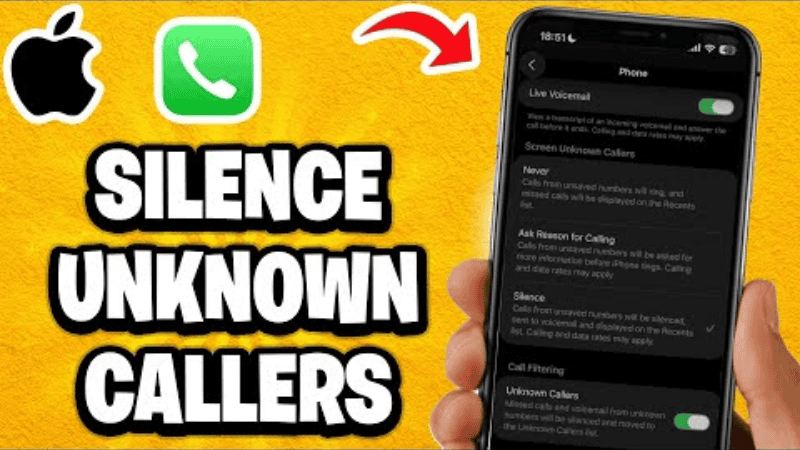
Silence Unknown Callers (Best Built-In Option)
This feature automatically silences calls from unknown numbers.
How to Enable Silence Unknown Callers
- Open Settings
- Tap Phone
- Select Silence Unknown Callers
- Turn it ON
Calls from unknown numbers go directly to voicemail, while recent outgoing calls and contacts still ring.
Block Specific Numbers Manually
Blocking individual spam numbers is useful when the same number keeps calling.
How to Block a Number on iPhone
- Open the Phone app
- Tap Recents
- Select the i icon next to the number
- Scroll down and tap Block this Caller
Once blocked, the number can no longer call or message you.
Filter Unknown Senders for Messages
Spam calls often come with spam messages.
Enable Message Filtering
- Go to Settings
- Tap Messages
- Turn on Filter Unknown Senders
Messages from unknown senders are filtered into a separate list.
Use Call Blocking & Identification Settings
Apple allows apps to identify and block spam callers.
How to Enable Call Identification
- Open Settings
- Tap Phone
- Select Call Blocking & Identification
- Enable trusted call-blocking apps
This allows apps to detect and block known spam numbers automatically.
Best Third-Party Apps to Block Spam Calls on iPhone
Third-party apps provide stronger spam detection using large databases.
Spam calls are often linked to data misuse, which is why learning how to protect your data privacy online is also important.
Popular Trusted Apps
- Truecaller
- Hiya
- Nomorobo
- RoboKiller
These apps identify spam callers and block them before your phone rings.
How Carrier Spam Protection Helps
Most mobile carriers offer spam protection services.
Common Carrier Features
- Automatic spam detection
- Spam call alerts
- Network-level blocking
Check your carrier’s app or website to activate these features.
How to Report Spam Calls on iPhone
Reporting spam calls helps improve detection systems.
Report Using Carrier Apps
Most carrier apps allow spam reporting.
Report to Apple
Blocked numbers help Apple improve spam filtering.
How to Reduce Spam Calls Long-Term
Blocking is effective, but prevention works even better.
Avoid Sharing Your Number Online
Do not post your phone number publicly on websites or social media.
Do Not Answer Unknown Calls
Answering confirms your number is active.

Avoid Pressing Keys During Robocalls
Interacting can increase spam activity.
What to Do If Spam Calls Continue
If spam calls remain frequent:
- Enable Silence Unknown Callers
- Use a trusted spam-blocking app
- Contact your carrier
- Change voicemail greeting to avoid engagement
Protect Your Data and Privacy
Spam calls are often linked to data misuse.
You may also find helpful:
How to Protect Your Data Privacy Online
Final Thoughts
In conclusion, stopping spam calls on iPhone is easier than ever with the right settings and tools. By enabling features like Silence Unknown Callers, using iPhone call blocking apps, and adjusting your call and notification preferences, you can enjoy peace of mind and protect your privacy. Regularly updating your iPhone settings and monitoring unknown numbers ensures you stay ahead of telemarketers and robocalls. Following these simple steps will not only reduce interruptions but also secure your personal information. Take control today and make unwanted calls a thing of the past with effective spam call prevention on your iPhone.
FAQ SECTION
1. Can iPhone block spam calls automatically?
Yes, iPhone includes built-in features like Silence Unknown Callers, which automatically sends unknown numbers to voicemail. You can also use call-blocking apps for better spam detection.
2. Does blocking a number stop spam calls completely?
Blocking a specific number prevents that number from calling again. However, spam callers often use multiple numbers, so combining blocking with spam-filtering tools works best.
3. Is Silence Unknown Callers safe to use?
Yes, it is safe. Calls from unknown numbers are silenced but still appear in recent calls and voicemail. Contacts, recent outgoing calls, and Siri suggestions still ring.
4. Do spam-blocking apps access my call data?
Most trusted spam-blocking apps only access call identification data to detect spam. Always review app permissions before enabling call blocking.
5. Can spam calls harm my iPhone?
Spam calls do not harm your iPhone directly, but answering scam calls can lead to data theft or financial loss.
6. Why do spam calls keep coming even after blocking them?
Spam callers frequently change numbers using spoofing techniques. This is why enabling built-in features and using carrier or app-based protection is important.
7. Can I stop spam calls without installing apps?
Yes. Apple’s built-in tools like Silence Unknown Callers, manual blocking, and carrier spam protection can significantly reduce spam calls without third-party apps.