How-to
Canva for Beginners: Step‑by‑Step Guide to Create Stunning Graphics
Creating eye-catching designs used to require professional skills. Today, tools like Canva have made graphic design simple for everyone. Even beginners can now create stunning visuals in minutes.
This guide explains how to use Canva for beginners in a clear and practical way. By following these steps, you will be able to design graphics for social media, blogs, presentations, and more without stress.
What Is Canva?
It is an online graphic design platform that works on both desktop and mobile devices. Instead of complex software, it uses a drag-and-drop interface that is easy to understand.
Because Canva offers ready-made templates, beginners do not need to start from a blank page. Editing text, images, and colors is usually enough to create a professional design.
Why Canva Is Ideal for Beginners
Many people choose Canva because of its simplicity.
For beginners, the platform removes most design challenges.
Key benefits include:
- No design experience required
- Easy drag-and-drop tools
- Thousands of free templates
- Works in a browser and mobile apps
- Powerful free plan
As a result, Canva is widely used by bloggers, students, and small businesses.
How to Create a Canva Account
Before designing anything, you need a free account.
Steps to sign up:
- Visit canva.com
- Click Sign up
- Register using email, Google, or Facebook
- Select your purpose (personal or business)
After logging in, the Canva dashboard will appear
Understanding the Canva Dashboard
The dashboard is where all your work is managed.
From here, you can start new designs or edit existing ones.
Main sections include:

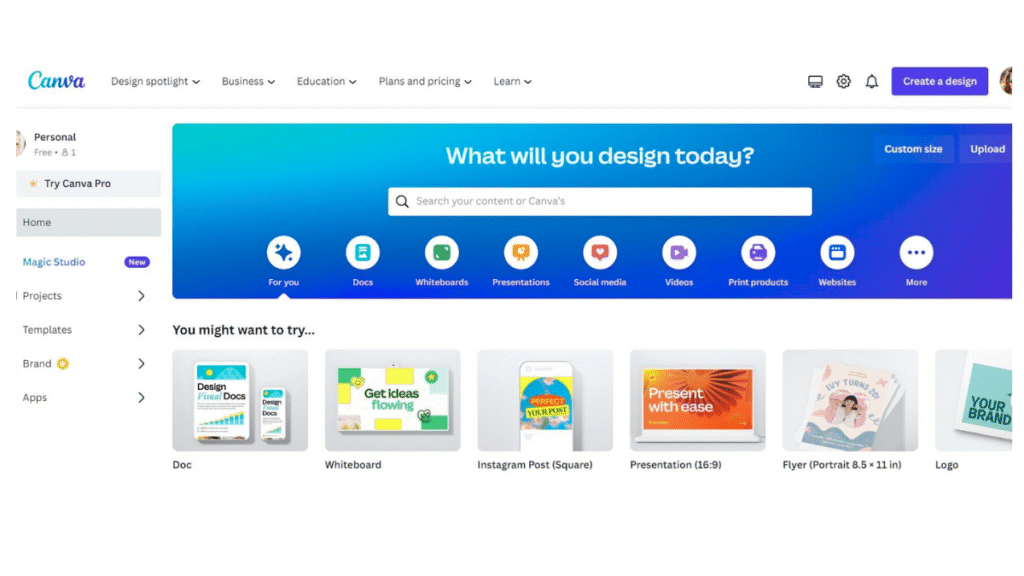
- Home – Suggested designs and recent work
- Templates – Ready-made layouts
- Projects – Saved designs
- Apps – Extra tools and features
For beginners, templates are the most useful place to start.
Many bloggers use Canva alongside AI tools, and learning how to use ChatGPT for blogging can help you create content and visuals faster.
Choosing the Right Design Size
Using the correct size is important for every platform.
Fortunately, Canva handles this automatically.
Popular sizes include:
- Instagram posts
- Facebook covers
- YouTube thumbnails
- Presentations
- Posters and flyers
Simply search for your platform, and Canva opens the correct canvas size.
Using Canva Templates
Templates help beginners avoid layout mistakes.
Each template is already designed by professionals.
How to use a template:
- Select a template you like
- Click Customize this template
- Replace text and images
- Adjust colors if needed
As a result, you can create attractive designs quickly.
Adding and Editing Text in Canva
Text gives meaning to your design.
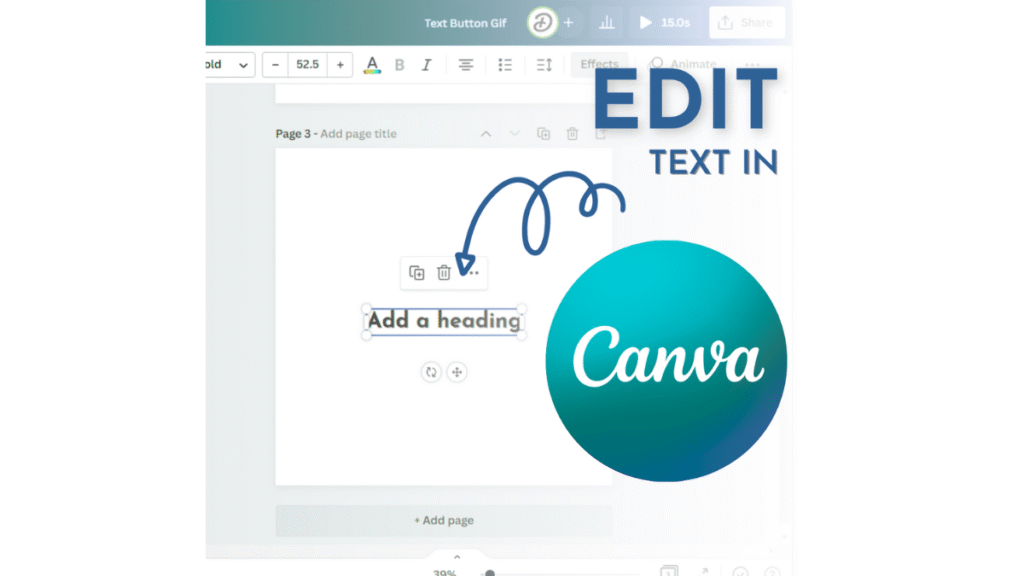
To add text, open the Text tab or press T on your keyboard.
From there, headings, subheadings, and body text can be added easily.
Canva provides many font styles and sizes.
In addition, font pairing suggestions help beginners maintain balance.
Because of this, text looks clean and readable without effort.
Add Images and Graphics
Visuals make designs more engaging.
Images can be added from Canva’s library or uploaded from your device.
Icons, shapes, and illustrations are available under Elements.
Once added, items can be resized, cropped, or adjusted.
However, using too many graphics can make designs crowded.
Keeping things simple often works best.
Changing Colors and Backgrounds
Color selection affects readability and appearance.
To change the background, click on it and choose a color from the toolbar.
For beginners, limiting designs to two or three colors is recommended.
This approach keeps visuals clean and professional.
Aligning and Organizing Design Elements
Proper alignment improves design quality.
It includes tools that help keep elements in place.
Helpful options include:
- Snap-to-grid
- Position tool
- Group and ungroup
- Duplicate elements
Therefore, designs remain balanced and visually appealing.
Downloading and Sharing
Once your design is complete, saving it is easy.
Steps to download:
- Click Share
- Select Download
- Choose a file format:
- PNG for images
- JPG for smaller files
- PDF for documents
Designs can also be shared directly on social media.
Canva Free vs Canva Pro
It offers both free and paid plans.
Canva Free includes:
- Free templates
- Basic images and elements
- Standard fonts
Canva Pro adds:
- Premium templates
- Background remover
- Brand kits
- One-click resizing
For most beginners, the free version is enough to start.
Common Mistakes Beginners Should Avoid
Some mistakes can reduce design quality:
- Using too many fonts
- Adding excessive elements
- Poor color contrast
- Ignoring spacing
- Low-quality images
Instead, focus on simplicity and clarity.
Best Uses of Canva
Canva is ideal for:
- Social media graphics
- Blog images
- YouTube thumbnails
- Presentations
- Posters and flyers
With practice, design skills naturally improve.
Tips to Create Better Canva Designs
- Start with templates
- Keep text short
- Use consistent colors
- Align elements properly
- Preview before downloading
Following these tips helps avoid beginner errors.
Frequently Asked Questions
Is Canva free for beginners?
Yes, Canva offers a free plan suitable for beginners.
Do I need design skills to use Canva?
No design experience is required.
Can Canva designs be used commercially?
Most elements allow commercial use, but licenses should be checked.
Is Canva available on mobile devices?
Yes, Canva works on both Android and iOS.
For more beginner-friendly tutorials like this, explore our how-to guides covering tools, apps, and software solutions.
Final Thoughts
Learning how to use Canva for beginners is a valuable skill.
With simple tools and ready-made templates, anyone can create stunning designs.
Whether you are a blogger, student, or business owner, Canva makes design accessible and stress-free.