How-to
How to Detect and Remove Spyware From an Android Phone 2026
Your Android phone carries your private world in its pocket. Messages, banking apps, passwords, and photos all live there. That is why learning how to Detect and Remove Spyware From an Android Phone is more important than ever. Spyware on Android often hides silently, acting as dangerous Malicious software that steals data without warning. This growing form of Mobile malware can expose your accounts to Cybercriminals and create serious Identity theft risks. You may not notice it at first. The signs can feel small and harmless. However acting quickly protects your privacy, money, and personal information from long-term digital damage.
What is spyware?
Spyware on Android is a form of Malicious software designed to secretly monitor your activity. It falls under the wider category of Mobile malware. Once installed, it collects sensitive data without your consent. This data may include passwords, browsing history, contacts, and even microphone recordings.
Some spyware acts like Hidden spy apps. Others operate as Phone monitoring apps or Stalkerware. Advanced threats such as a Remote access trojan (RAT) allow attackers to control your phone from anywhere. These programs often include Keyloggers, Password stealers, Banking trojans, and Information stealers. Even simple Cookie trackers can expose login sessions. In short, spyware turns your phone into a surveillance device.
What makes spyware so dangerous?
Spyware is dangerous because it attacks silently. You may notice Excessive battery drain or Phone overheating and assume your device is old. However, those symptoms can signal an Android security threat working in the background.
The real danger lies in stolen data. Login credentials theft leads to email compromise. Financial information theft can empty bank accounts. Worse, it may result in Identity theft, which takes months to repair. Many Cybercriminals use spyware to bypass Fraud prevention systems. Once inside your phone, they can read verification codes, intercept messages, and access banking apps. If you ever asked, “Why is my battery draining fast?” spyware might be the hidden answer.
Where does spyware come from?
Most infections begin with unsafe downloads. Users install apps outside the protection of Google Play Store vetting. These apps may look harmless but hide Malicious apps inside. Hackers also use Phishing scams through emails or text messages. One fake delivery link is enough to trigger infection.
Another common method involves permission abuse. Spyware often requests Device administrator permissions. Once granted, removal becomes difficult. Public Wi-Fi networks can also spread threats. When users download files on unsecured networks, attackers exploit vulnerabilities. To Avoid malicious app downloads, always verify the developer and read reviews carefully.
Spyware examples
Real-world spyware shows how serious this threat is. Pegasus is a high-profile surveillance tool that targeted journalists and officials. SpyNote steals messages and call logs. HiddenMiner secretly mines cryptocurrency and slows devices dramatically.
Below is a simplified comparison of known spyware families:
| Spyware Name | Main Function | Risk Level |
|---|---|---|
| Pegasus | Full surveillance | Critical |
| SpyNote | SMS and call tracking | High |
| Agent Smith | App replacement attack | High |
| HiddenMiner | Crypto mining | Medium |
Many Stalkerware apps pretend to offer parental control. In reality, they enable secret monitoring. If you want to Stop phone surveillance, understanding these examples helps you recognize patterns early.
How to detect spyware on Android phone
Learning How to detect spyware on Android phone begins with recognizing behavior changes. Spyware consumes resources. That leads to High data usage, slower performance, and overheating. If you search online for “Why is my phone running slow,” spyware may be the cause.

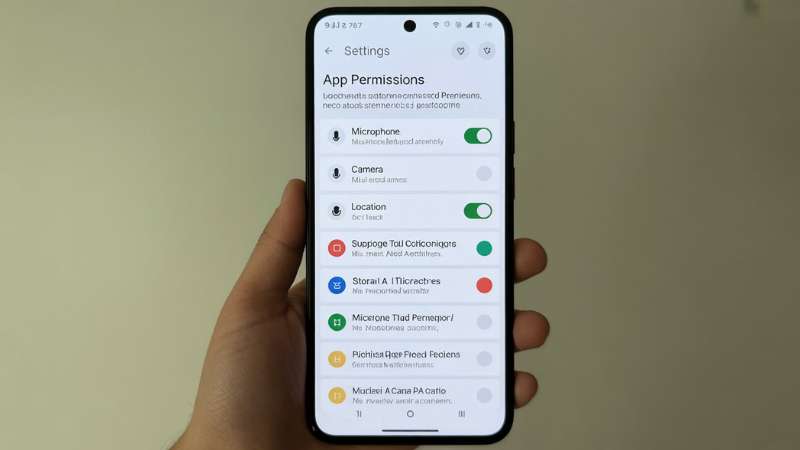
You should also inspect app permissions. Check for Suspicious app permissions like microphone access for a flashlight app. Monitor sudden spikes in data. Run a trusted Malware scan using reputable Antivirus software. To Detect unauthorized device access, review your Google account login history. Unfamiliar logins may signal compromise. These steps help you Monitor suspicious phone activity before serious damage occurs.
How to remove spyware from Android
Once you confirm infection, act quickly. Start by restarting your phone in Safe mode Android. Safe mode disables third-party apps temporarily. If issues stop, an app is responsible. Next, remove suspicious applications and revoke administrator rights.
After uninstalling unknown apps, perform Browser cache clearing to remove tracking scripts. Run a full Malware scan again. If spyware persists, perform a Factory data reset. This wipes all data and removes deep infections. Afterward, carefully Restore Android after factory reset using secure backups only. These steps explain clearly How to remove spyware from Android without professional tools.

Protect your Android phone from spyware
Prevention is stronger than repair. Regular Android OS updates patch security flaws. Enable Two-factor authentication (2FA) for all major accounts. Always use Secure websites (HTTPS) when entering passwords. These habits help you Protect personal data on mobile devices.
To Secure your smartphone from hackers, install reliable Antivirus software and keep Google Play Protect enabled. Avoid public USB charging ports. Never click unknown SMS links. These simple actions strengthen Mobile cybersecurity protection. They also help you Protect privacy on Android devices and prevent future infections.
How to Detect and Remove Spyware From an Android Phone
Let us bring everything together. First, identify warning signs such as overheating or unusual data spikes. Next, check permissions and run a security scan. Then remove suspicious apps using safe mode. Finally, reset the device if needed.
Understanding How to Detect and Remove Spyware From an Android Phone empowers you. It allows you to act before criminals exploit your information. Quick response reduces financial loss and prevents long-term damage.
Want to stay up to date on Kaspersky news?
Cyber threats evolve daily. Security researchers publish new findings each month. Following trusted cybersecurity sources keeps you informed about emerging Android security threat trends.
Staying updated helps you Protect your Android from stalker ware, detect new spyware strains, and adapt quickly. Cybersecurity is not a one-time task. It is an ongoing commitment.
for other guide please check this step by step guide How to Know If You Can Get Back a Deleted Facebook Account (7 Clear Steps)
Conclusion
Your Android phone is more than a device. It is your wallet, diary, and communication hub. Ignoring security risks invites trouble. Spyware thrives on silence and delay. Acting early makes all the difference.
Now you understand How to Detect and Remove Spyware From an Android Phone clearly and confidently. You know the warning signs. You know the removal steps. Most importantly, you know how to prevent future infections. Practice safe browsing. Update regularly. Question unusual behavior. When you take control of your digital habits, you shut the door on spyware for good.
Frequently Asked Questions (FAQ)
How do I check if there is spyware on my Android phone?
Look for unusual battery drain, high data usage, unknown apps, or strange pop-ups. Run a trusted antivirus scan and review app permissions in Settings.
How do I find hidden spy apps on my phone Android?
Check the full Apps list including system apps and review device administrator access. Remove unfamiliar apps and scan your phone with security software.
How do I know if my phone is being monitored on Android?
Signs include background call noises, overheating, messages marked as read, or sudden slow performance. Check account activity and change passwords immediately if suspicious.
How to remove spyware from Android phone for free?
Boot into Safe Mode, uninstall suspicious apps, and run a free antivirus scan. If needed, perform a factory reset after backing up your data.
How do I check if my phone is linked to another phone on Android?
Open your Google account and review the Devices section for unknown logins. Remove unfamiliar devices and enable two-factor authentication.